

02 Apr CSS flex-direction Property
To set the direction of the flex items in the flex container, use the flex-direction property. The following are the values of the flex-direction property:
- flex-direction: row;
- flex-direction: column;
- flex-direction: row-reverse;
- flex-direction: column-reverse;
Let us understand them one by one.
flex-direction: row;
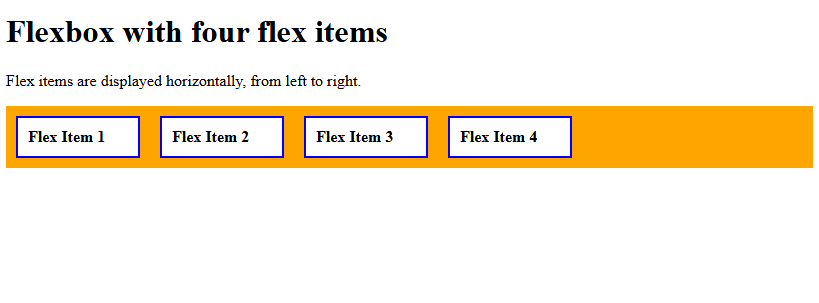
Use the row value of the flex-direction property to display the flex items horizontally. It will be visible from left to right. Let us see an example:
<!DOCTYPE html>
<html>
<head>
<style>
.container {
  display: flex;
  flex-direction: row;
  background-color: orange;
}

.container div {
  width: 100px;
  background-color: white;
  border: 2px solid blue;
  margin: 10px;
  padding: 10px;
  font-weight: bold;
}
</style>
</head>
<body>
<h1>Flexbox with four flex items</h1>
<p>Flex items are displayed horizontally, from left to right.</p>
<div class="container">
  <div>Flex Item 1</div>
  <div>Flex Item 2</div>
  <div>Flex Item 3</div>
  <div>Flex Item 4</div>
</div>
</body>
</html>
Output
flex-direction: column;
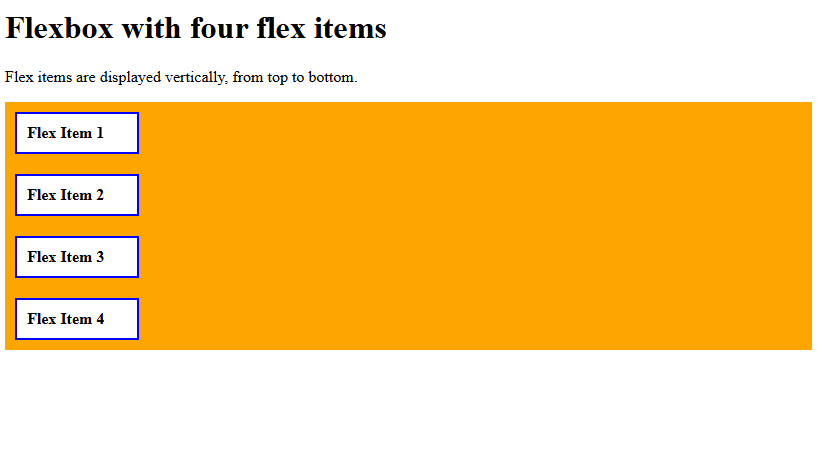
Use the column value of the flex-direction property to display the flex items vertically. It will be visible from top to bottom. Let us see an example:
<!DOCTYPE html>
<html>
<head>
<style>
.container {
  display: flex;
  flex-direction: column;
  background-color: orange;
}

.container div {
  width: 100px;
  background-color: white;
  border: 2px solid blue;
  margin: 10px;
  padding: 10px;
  font-weight: bold;
}
</style>
</head>
<body>
<h1>Flexbox with four flex items</h1>
<p>Flex items are displayed vertically, from top to bottom.</p>
<div class="container">
  <div>Flex Item 1</div>
  <div>Flex Item 2</div>
  <div>Flex Item 3</div>
  <div>Flex Item 4</div>
</div>
</body>
</html>
Output
flex-direction: row-reverse;
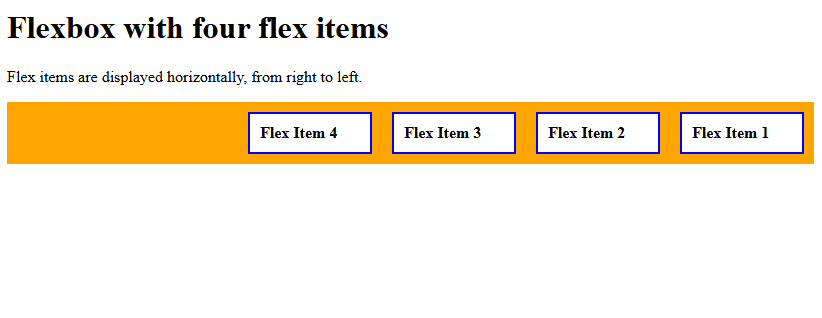
Use the row-reverse value of the flex-direction property to display the flex items horizontally. It will be visible from right to left. Let us see an example:
<!DOCTYPE html>
<html>
<head>
<style>
.container {
  display: flex;
  flex-direction: row-reverse;
  background-color: orange;
}

.container div {
  width: 100px;
  background-color: white;
  border: 2px solid blue;
  margin: 10px;
  padding: 10px;
  font-weight: bold;
}
</style>
</head>
<body>
<h1>Flexbox with four flex items</h1>
<p>Flex items are displayed horizontally, from right to left.</p>
<div class="container">
  <div>Flex Item 1</div>
  <div>Flex Item 2</div>
  <div>Flex Item 3</div>
  <div>Flex Item 4</div>
</div>
</body>
</html>
Output
flex-direction: column-reverse;
Use the column-reverse value of the flex-direction property to display the flex items vertically. It will be visible from bottom to top. Let us see an example:
<!DOCTYPE html>
<html>
<head>
<style>
.container {
  display: flex;
  flex-direction: column-reverse;
  background-color: orange;
}

.container div {
  width: 100px;
  background-color: white;
  border: 2px solid blue;
  margin: 10px;
  padding: 10px;
  font-weight: bold;
}
</style>
</head>
<body>
<h1>Flexbox with four flex items</h1>
<p>Flex items are displayed vertically, from bottom to top.</p>
<div class="container">
  <div>Flex Item 1</div>
  <div>Flex Item 2</div>
  <div>Flex Item 3</div>
  <div>Flex Item 4</div>
</div>
</body>
</html>
Output

If you liked the tutorial, spread the word and share the link and our website, Studyopedia, with others.
Read More:

No Comments