

02 Apr CSS Flexbox align-items Property
The align-items property in CSS is used to control how flex or grid items are aligned along the cross axis (vertical by default in flexbox). Its default value is stretch, meaning items expand to fill the container’s height, but you can set it to values like center, flex-start, flex-end, or baseline for different alignment behaviors.
The following are the values of the align-items property:
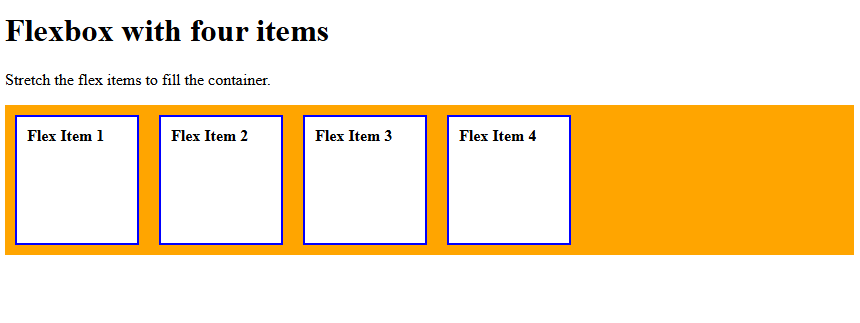
- stretch: Items stretch to fill the container (default). This is equal to the normal.
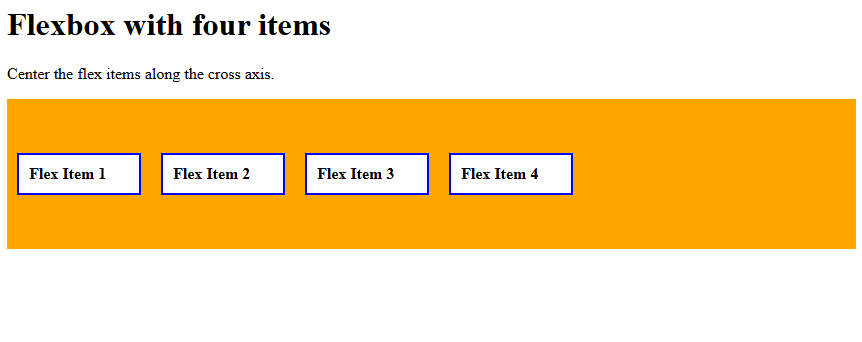
- center: Items are centered along the cross-axis.
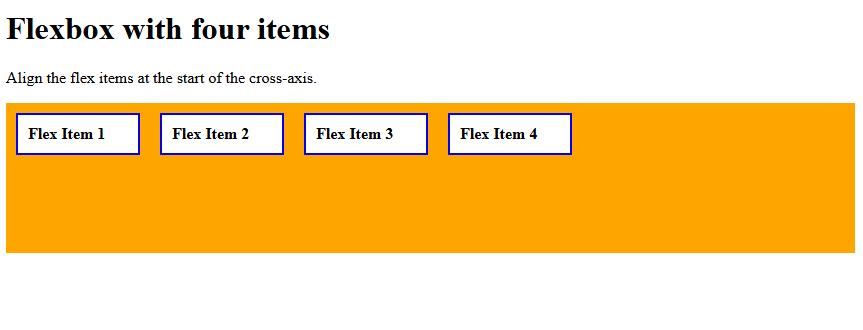
- flex-start: Items align at the start of the cross-axis.
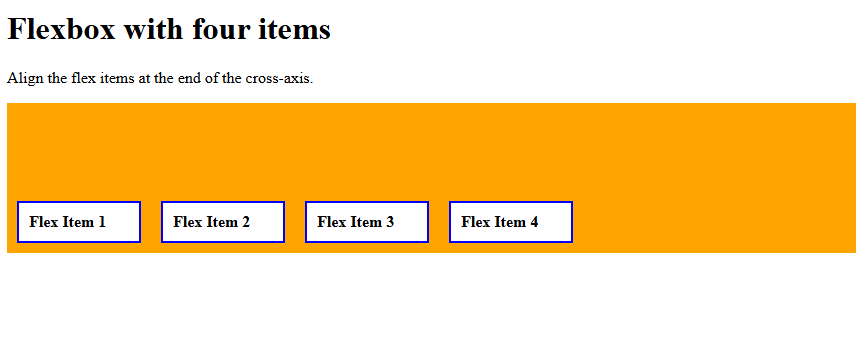
- flex-end: Items align at the end of the cross-axis.
- baseline: Items align based on the text baseline of their first line of text.
Let us understand them one by one.
align-items: stretch
Use the align-items property with the value stretch to stretch the flex items to fill the container. Let us see an example:
<!DOCTYPE html>
<html>
<head>
<style>
.container {
  display: flex;
  align-items: stretch;
  height: 150px;
  background-color: orange;
}

.container div {
  width: 100px;
  background-color: white;
  border: 2px solid blue;
  margin: 10px;
  padding: 10px;
  font-weight: bold;
}
</style>
</head>
<body>
<h1>Flexbox with four items</h1>
<p>Stretch the flex items to fill the container.</p>
<div class="container">
  <div>Flex Item 1</div>
  <div>Flex Item 2</div>
  <div>Flex Item 3</div>
  <div>Flex Item 4</div>
</div>
</body>
</html>
Output
align-items: center
Use the align-items property with the value center to center the flex items along the cross axis. Let us see an example:
<!DOCTYPE html>
<html>
<head>
<style>
.container {
  display: flex;
  align-items: center;
  height: 150px;
  background-color: orange;
}

.container div {
  width: 100px;
  background-color: white;
  border: 2px solid blue;
  margin: 10px;
  padding: 10px;
  font-weight: bold;
}
</style>
</head>
<body>
<h1>Flexbox with four items</h1>
<p>Center the flex items along the cross axis.</p>
<div class="container">
  <div>Flex Item 1</div>
  <div>Flex Item 2</div>
  <div>Flex Item 3</div>
  <div>Flex Item 4</div>
</div>
</body>
</html>
Output
align-items: flex-start
Use the align-items property with the value flex-start to align the flex items at the start of the cross-axis. Let us see an example:
<!DOCTYPE html>
<html>
<head>
<style>
.container {
  display: flex;
  align-items: flex-start;
  height: 150px;
  background-color: orange;
}

.container div {
  width: 100px;
  background-color: white;
  border: 2px solid blue;
  margin: 10px;
  padding: 10px;
  font-weight: bold;
}
</style>
</head>
<body>
<h1>Flexbox with four items</h1>
<p>Align the flex items at the start of the cross-axis.</p>
<div class="container">
  <div>Flex Item 1</div>
  <div>Flex Item 2</div>
  <div>Flex Item 3</div>
  <div>Flex Item 4</div>
</div>
</body>
</html>
Output
align-items: flex-end
Use the align-items property with the value flex-end to align the flex items at the end of the cross-axis. Let us see an example:
<!DOCTYPE html>
<html>
<head>
<style>
.container {
  display: flex;
  align-items: flex-end;
  height: 150px;
  background-color: orange;
}

.container div {
  width: 100px;
  background-color: white;
  border: 2px solid blue;
  margin: 10px;
  padding: 10px;
  font-weight: bold;
}
</style>
</head>
<body>
<h1>Flexbox with four items</h1>
<p>Align the flex items at the end of the cross-axis.</p>
<div class="container">
  <div>Flex Item 1</div>
  <div>Flex Item 2</div>
  <div>Flex Item 3</div>
  <div>Flex Item 4</div>
</div>
</body>
</html>
Output
If you liked the tutorial, spread the word and share the link and our website, Studyopedia, with others.
Read More:

No Comments