

25 Feb JavaScript Arrays
An array is a collection of similar types of elements. The JavaScript Array object represents such an array. In JavaScript, arrays are dynamic, ordered collections that can store multiple values (numbers, strings, objects, or even other arrays) under a single variable name. They are zero-indexed, meaning the first element is at index 0, and they come with powerful built-in methods for adding, removing, and manipulating data.
Note: We have used the const keyword to create an array since it is generally and widely preferred. The const introduced in ES6.
Key Characteristics of JavaScript Arrays
- Ordered & Indexed: Elements are stored in sequence, starting at index
0. - Dynamic Size: Arrays can grow or shrink as elements are added or removed.
- Heterogeneous: Can hold mixed data types (e.g., numbers, strings, objects).
- Object Type: Arrays are specialized objects with methods for manipulation.
- Not associative: Keys must be numeric indices, not arbitrary strings
In this lesson, we will learn how to:
- Create an Array
- Access array elements
- Find the length of an array
- Iterate an Array
- at() method in JavaScript
- join() method in JavaScript
- push() method in JavaScript
- pop() method in JavaScript
- shift() method in JavaScript
- unshift() method in JavaScript
- Concatenate two arrays using the concat() method
- Concat an array with values using the concat() method
- splice() method to add new elements to an array
- splice() method to remove elements
- slice() method in JavaScript
- sort() method in JavaScript
- reverse() method in JavaScript
- includes() method in JavaScript
Create an Array
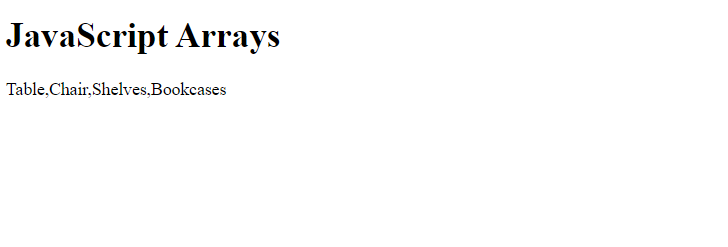
Let us see how to create an array in JavaScript. We have created an array of string elements:
<!DOCTYPE html>
<html>
<body>

<h2>JavaScript Arrays</h2>

<p id="test"></p>

<script>
const product = ["Table", "Chair", "Shelves", "Bookcases"];
document.getElementById("test").innerHTML = product;
</script>

</body>
</html>
Output
Access Array elements
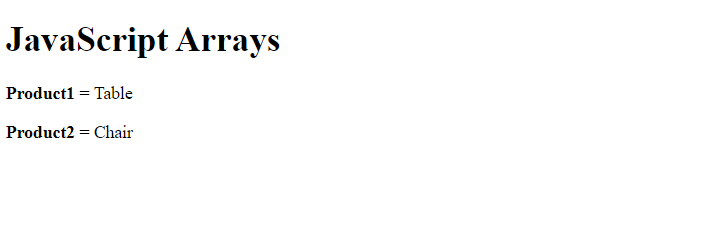
To access elements in an array, we use the square brackets. Within that, set the index number. Like Java, the arrays in JavaScript begin with index 0. Therefore, the following access the 1st element from the product array:
product[0]
Let us see an example to access array elements in JavaScript:
<!DOCTYPE html>
<html>
<body>

<h1>JavaScript Arrays</h1>

<p id="test"></p>

<script>
const product = ["Table", "Chair", "Shelves", "Bookcases"];
document.getElementById("test").innerHTML = "<p><strong>Product1 = </strong>"+product[0]+"</p><p><strong>Product2 = </strong>"+product[1]+"</p>";
</script>

</body>
</html>
Output
Find the length of an array
To find the length of an array in JavaScript, use the length property. Let us see an example:
<!DOCTYPE html>
<html>
<body>

<h1>JavaScript Arrays</h1>

<p id="test"></p>

<script>
const product = ["Table", "Chair", "Shelves", "Bookcases"];
document.getElementById("test").innerHTML = product.length;
</script>

</body>
</html>
Output

Iterate an Array
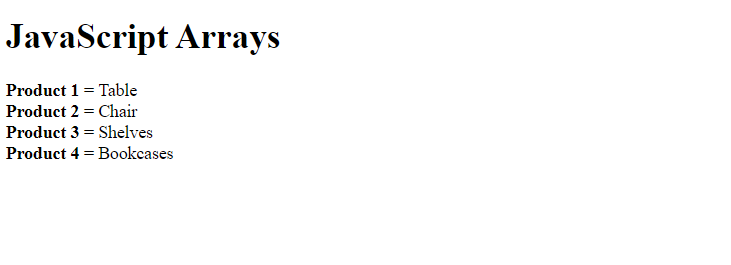
To iterate an array in JavaScript, we will use the for loop:
<!DOCTYPE html>
<html>
<body>

<h1>JavaScript Arrays</h1>

<p id="test"></p>

<script>
const product = ["Table", "Chair", "Shelves", "Bookcases"];

let res = "<p>";
for (let i = 0; i < product.length; i++) {
  res += "<strong>Product "+(i+1)+" = </strong>"+ product[i] + "<br />";
}
res += "</p>";
document.getElementById("test").innerHTML = res;
</script>

</body>
</html>
Output
at() method in JavaScript
The at() method in JavaScript returns the element at a given index (supports negative indices to count from the end). Let us see an example:
<!-- JavaScript Arrays -->
<!-- at() method -->
<!DOCTYPE html>
<html>
<head>

</head>
<body>
<h1>at() method</h1>
<p id = "demo"></p>

<script>
const product = ["Laptop", "Desktop", "Mobile", "Tablet"]
let res = product.at(3)

document.getElementById("demo").innerHTML = res;

</script>

</body>
</html>
Output

join() method in JavaScript
The join() method in JavaScript combines all array elements into a single string, separated by a specified delimiter. Let us see an example:
<!-- JavaScript Arrays -->
<!-- join() method -->
<!DOCTYPE html>
<html>
<head>

</head>
<body>
<h1>join() method</h1>
<p id = "demo"></p>

<script>
const product = ["Laptop", "Desktop", "Mobile", "Tablet"]

document.getElementById("demo").innerHTML = product.join(" # ");

</script>

</body>
</html>
Output

push() method in JavaScript
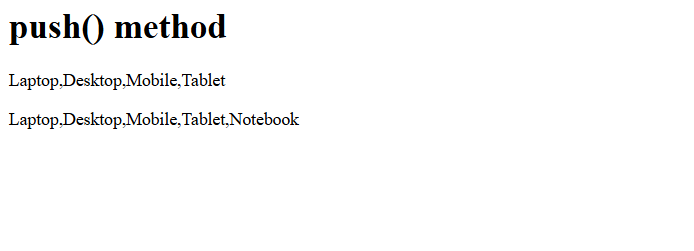
The push() method in JavaScript adds one or more elements to the end of an array and returns the new length. Let us see an example:
<!-- JavaScript Arrays -->
<!-- push() method -->
<!DOCTYPE html>
<html>
<head>

</head>
<body>
<h1>push() method</h1>
<p id = "demo"></p>
<p id = "test"></p>

<script>
const product = ["Laptop", "Desktop", "Mobile", "Tablet"]

document.getElementById("demo").innerHTML = product

product.push("Notebook")

document.getElementById("test").innerHTML = product

</script>

</body>
</html>
Output
pop() method in JavaScript
The pop() method in JavaScript removes the last element from an array and returns it. Let us see an example:
<!-- JavaScript Arrays -->
<!-- pop() method -->
<!DOCTYPE html>
<html>
<head>

</head>
<body>
<h1>pop() method</h1>
<p id = "demo"></p>
<p id = "test"></p>

<script>
const product = ["Laptop", "Desktop", "Mobile", "Tablet"]

document.getElementById("demo").innerHTML = product

product.pop()

document.getElementById("test").innerHTML = product

</script>

</body>
</html>
Output

shift() method in JavaScript
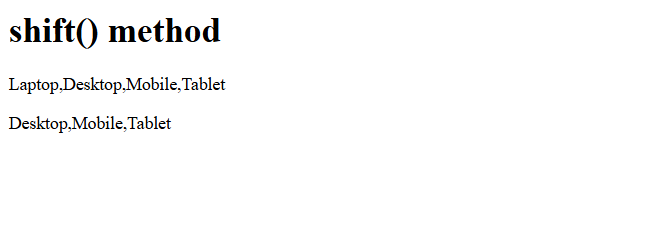
The shift() method in JavaScript removes the first element from an array and returns it. Let us see an example:
<!-- JavaScript Arrays -->
<!-- shift() method -->
<!DOCTYPE html>
<html>
<head>

</head>
<body>
<h1>shift() method</h1>
<p id = "demo"></p>
<p id = "test"></p>

<script>
const product = ["Laptop", "Desktop", "Mobile", "Tablet"]

document.getElementById("demo").innerHTML = product

product.shift()

document.getElementById("test").innerHTML = product

</script>

</body>
</html>
Output
unshift() method in JavaScript
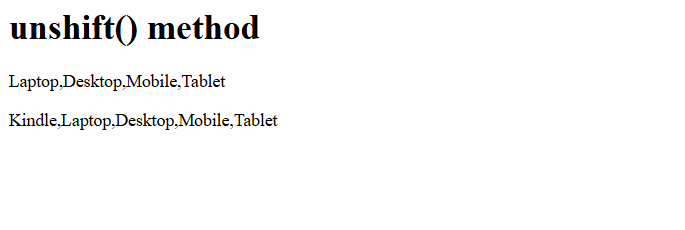
The unshift() method in JavaScript adds one or more elements to the beginning of an array and returns the new length. Let us see an example:
<!-- JavaScript Arrays -->
<!-- unshift() method -->
<!DOCTYPE html>
<html>
<head>

</head>
<body>
<h1>unshift() method</h1>
<p id = "demo"></p>
<p id = "test"></p>

<script>
const product = ["Laptop", "Desktop", "Mobile", "Tablet"]

document.getElementById("demo").innerHTML = product

product.unshift("Kindle")

document.getElementById("test").innerHTML = product

</script>

</body>
</html>
Output
Concatenate two arrays using the concat() method
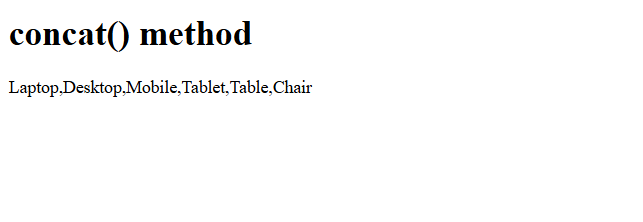
The concat() method in JavaScript merges two arrays into a new one without changing the originals. Let us see an example:
<!-- JavaScript Arrays -->
<!-- Concatenate two arrays using concat() method -->
<!DOCTYPE html>
<html>
<head>

</head>
<body>
<h1>concat() method</h1>
<p id = "demo"></p>

<script>
const product_cat1 = ["Laptop", "Desktop", "Mobile", "Tablet"]
const product_cat2 = ["Table", "Chair"]

const res = product_cat1.concat(product_cat2)

document.getElementById("demo").innerHTML = res

</script>

</body>
</html>
Output
Concat an array with values using the concat() method
The concat() method in JavaScript can also be used to create a new array by adding values to the existing one. Let us see an example:
<!-- JavaScript Arrays -->
<!-- Concat an array with values using concat() method -->
<!DOCTYPE html>
<html>
<head>

</head>
<body>
<h1>concat() method</h1>
<p id = "demo"></p>

<script>
const product = ["Laptop", "Desktop", "Mobile", "Tablet"]

const res = product.concat("Kindle ")

document.getElementById("demo").innerHTML = res

</script>

</body>
</html>
Output

splice() method to add new elements to an array
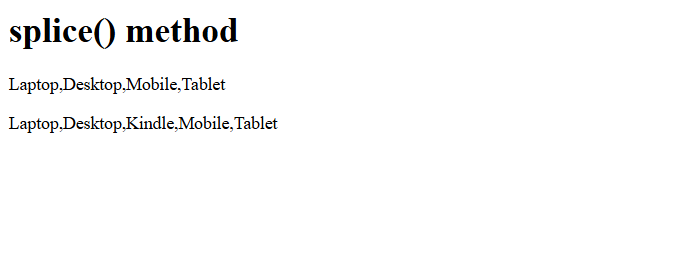
The splice() method in JavaScript inserts new elements at a specified index, modifying the original array. Let us see an example:
<!-- JavaScript Arrays -->
<!-- splice() method to add new elements to an array -->
<!DOCTYPE html>
<html>
<head>

</head>
<body>
<h1>splice() method</h1>
<p id = "demo"></p>
<p id = "test"></p>

<script>
const product = ["Laptop", "Desktop", "Mobile", "Tablet"]
document.getElementById("demo").innerHTML = product

// splice() method
// The 1st parameter defines the postion where new elements gets added. Here, after the 2nd position, a new element will be added
// The 2nd parameter defines the number of elements to remove. We are not removing an element here, therefore 0 is set
product.splice(2, 0, "Kindle")

document.getElementById("test").innerHTML = product

</script>

</body>
</html>
Output
splice() method to remove elements
The splice() method in JavaScript can also be used to remove elements from a specified index and return the deleted items. Let us see an example:
<!-- JavaScript Arrays -->
<!-- splice() method to remove elements -->
<!DOCTYPE html>
<html>
<head>

</head>
<body>
<h1>splice() method</h1>
<p id = "demo"></p>
<p id = "test"></p>

<script>
const product = ["Laptop", "Desktop", "Mobile", "Tablet"]
document.getElementById("demo").innerHTML = product

// splice() method to remove element
// The 1st parameter defines the postion where new elements gets added. We are not adding a new element.
// The 2nd parameter defines the number of elements to remove. Here, we are removing 2 elements
product.splice(0, 2)

document.getElementById("test").innerHTML = product

</script>

</body>
</html>
Output

slice() method in JavaScript
The slice() method in JavaScript returns a shallow copy of a portion of the array without modifying it. Let us see an example:
<!-- JavaScript Arrays -->
<!-- slice()-->
<!DOCTYPE html>
<html>
<head>

</head>
<body>
<h1>slice() method</h1>
<p id = "demo"></p>
<p id = "test"></p>

<script>
const product = ["Laptop", "Desktop", "Mobile", "Tablet", "Kindle", "Notebook"]
document.getElementById("demo").innerHTML = product

// Slice out a part of an array beginning from element 2
const res = product.slice(2)

document.getElementById("test").innerHTML = res

</script>

</body>
</html>
Output

sort() method in JavaScript
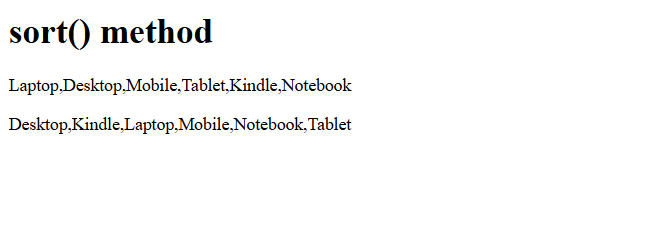
The sort() method in JavaScript sorts array elements in place, by default in lexicographic (string) order. Let us see an example:
<!-- JavaScript Arrays -->
<!-- sort()-->
<!DOCTYPE html>
<html>
<head>

</head>
<body>
<h1>sort() method</h1>
<p id = "demo"></p>
<p id = "test"></p>

<script>
const product = ["Laptop", "Desktop", "Mobile", "Tablet", "Kindle", "Notebook"]
document.getElementById("demo").innerHTML = product

// Sort
product.sort()

document.getElementById("test").innerHTML = product

</script>

</body>
</html>
Output
reverse() method in JavaScript
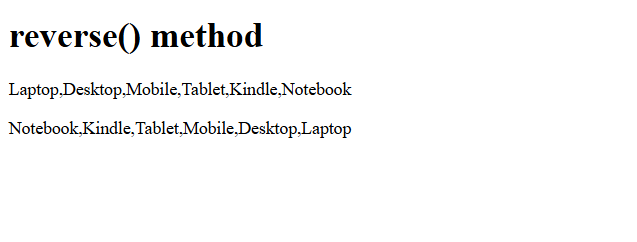
The reverse() method in JavaScript reverses the order of elements in the array in place. Let us see an example:
<!-- JavaScript Arrays -->
<!-- reverse()-->
<!DOCTYPE html>
<html>
<head>

</head>
<body>
<h1>reverse() method</h1>
<p id = "demo"></p>
<p id = "test"></p>

<script>
const product = ["Laptop", "Desktop", "Mobile", "Tablet", "Kindle", "Notebook"]
document.getElementById("demo").innerHTML = product

// reverse
product.reverse()

document.getElementById("test").innerHTML = product

</script>

</body>
</html>
Output
includes() method in JavaScript
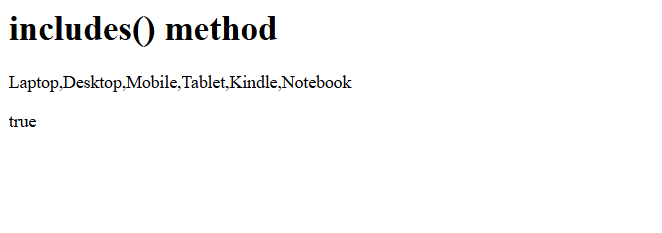
The includes() method in JavaScript checks if an array contains a specific value, returning true or false. Let us see an example:
<!-- JavaScript Arrays -->
<!-- includes()-->
<!DOCTYPE html>
<html>
<head>

</head>
<body>
<h1>includes() method</h1>
<p id = "demo"></p>
<p id = "test"></p>

<script>
const product = ["Laptop", "Desktop", "Mobile", "Tablet", "Kindle", "Notebook"]
document.getElementById("demo").innerHTML = product

// includes()

document.getElementById("test").innerHTML = product.includes("Notebook")

</script>

</body>
</html>
Output

No Comments