

03 Mar How to download a model from Hugging Face
Downloading models from Hugging Face is simple and can be done using the Transformers library or directly from the Hugging Face Hub. Below is a step-by-step guide to help you download and use models from Hugging Face.
Step 1: Install the Transformers Library
If you haven’t already installed the transformers library, you can do so using pip. On Google Colab, use the following command to install:
!pip install transformers
Step 2: Download a Model Using the Transformers Library
You can download a model using the from_pretrained method. This method downloads the model weights, configuration, and tokenizer (if applicable) from the Hugging Face Hub.
Example: Download a Pre-Trained BERT Model
from transformers import AutoModel, AutoTokenizer

# Download the model and tokenizer
model_name = "bert-base-uncased"
model = AutoModel.from_pretrained(model_name)
tokenizer = AutoTokenizer.from_pretrained(model_name)

# Use the model and tokenizer
inputs = tokenizer("Hello, Hugging Face!", return_tensors="pt")
outputs = model(**inputs)
print(outputs.last_hidden_state.shape)  # Example output shape
Above, the output is:
torch.Size([1, 7, 768])
This shape is commonly seen in models like BERT, where each token in a sequence is represented by a 768-dimensional vector.
When we use the bert-base-uncased model and pass the input Hello, Hugging Face!, the last hidden state output shape represents the tensor dimensions. For this example, the shape you would typically see is:
torch.Size([1, 7, 768])
Here’s a breakdown:
- 1: The batch size—since there’s one input sentence.
- 7: The sequence length—this corresponds to the tokenized version of
"Hello, Hugging Face!", including special tokens like[CLS]and[SEP]. - 768: The hidden size—each token is represented as a 768-dimensional vector, standard for BERT’s base architecture.
Step 3: Download a Model for a Specific Task
Hugging Face provides task-specific models (e.g., for text classification, question answering, etc.). You can download these models using the appropriate class.
Example: Download a Text Classification Model
from transformers import AutoModelForSequenceClassification, AutoTokenizer

# Download a model for text classification
model_name = "distilbert-base-uncased-finetuned-sst-2-english"
model = AutoModelForSequenceClassification.from_pretrained(model_name)
tokenizer = AutoTokenizer.from_pretrained(model_name)

# Use the model for inference
inputs = tokenizer("I love Hugging Face!", return_tensors="pt")
outputs = model(**inputs)
print(outputs.logits)  # Output logits for classification
Step 4: Download a Model from the Hugging Face Hub Website
If you prefer to download models manually, you can do so from the Hugging Face Hub website:
- Go to the Hugging Face Hub: https://huggingface.co/models.
- Search for the model you want (e.g., bert-base-uncased).
- Click on the model to open its page.
- Download the model files directly from the “Files” tab.
Step 5: Use a Downloaded Model Locally
If you’ve downloaded a model manually, you can load it from a local directory:
from transformers import AutoModel, AutoTokenizer

# Load the model and tokenizer from a local directory
model = AutoModel.from_pretrained("path/to/local/model")
tokenizer = AutoTokenizer.from_pretrained("path/to/local/tokenizer")
Step 6: Download a Model with Custom Configurations
Some models have multiple configurations or variants. You can specify the configuration when downloading the model.
Example: Download a Multilingual BERT Model
from transformers import AutoModel, AutoTokenizer

# Download a multilingual BERT model
model_name = "bert-base-multilingual-cased"
model = AutoModel.from_pretrained(model_name)
tokenizer = AutoTokenizer.from_pretrained(model_name)
Step 7: Download a Model with a Specific Framework
You can specify the framework (PyTorch, TensorFlow, or JAX) when downloading a model.
Example: Download a TensorFlow Model
from transformers import TFAutoModel, AutoTokenizer

# Download a TensorFlow model
model_name = "bert-base-uncased"
model = TFAutoModel.from_pretrained(model_name)
tokenizer = AutoTokenizer.from_pretrained(model_name)
Step 8: Use the Model for Inference
Once the model is downloaded, you can use it for inference. Here’s an example of using a text classification model:
from transformers import pipeline

# Load a text classification pipeline
classifier = pipeline("text-classification", model="distilbert-base-uncased-finetuned-sst-2-english")

# Perform inference
result = classifier("I love Hugging Face!")
print(result)
Step 9: Save a Downloaded Model Locally
You can save a downloaded model and tokenizer to a local directory for future use:
# Save the model and tokenizer
model.save_pretrained("path/to/save/model")
tokenizer.save_pretrained("path/to/save/tokenizer")
To load the saved model later:
from transformers import AutoModel, AutoTokenizer

# Load the model and tokenizer from a local directory
model = AutoModel.from_pretrained("path/to/save/model")
tokenizer = AutoTokenizer.from_pretrained("path/to/save/tokenizer")
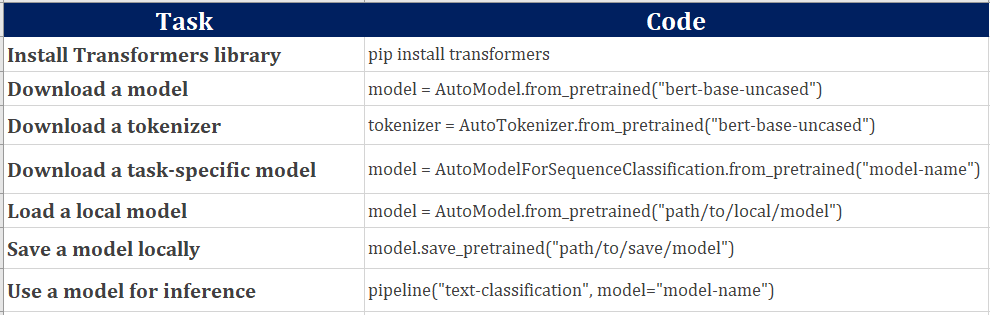
We used the following commands above:
If you liked the tutorial, spread the word and share the link and our website Studyopedia with others.
For Videos, Join Our YouTube Channel: Join Now
Read More:
- RAG Tutorial
- Generative AI Tutorial
- Machine Learning Tutorial
- Deep Learning Tutorial
- Ollama Tutorial
- Retrieval Augmented Generation (RAG) Tutorial
- Copilot Tutorial
- ChatGPT Tutorial

No Comments