

27 Jan jQuery – Set CSS Properties
The css() method is used in jQuery to set the CSS properties. Before moving further, we’ve prepared a video tutorial to learn to set the CSS properties in jQuery:
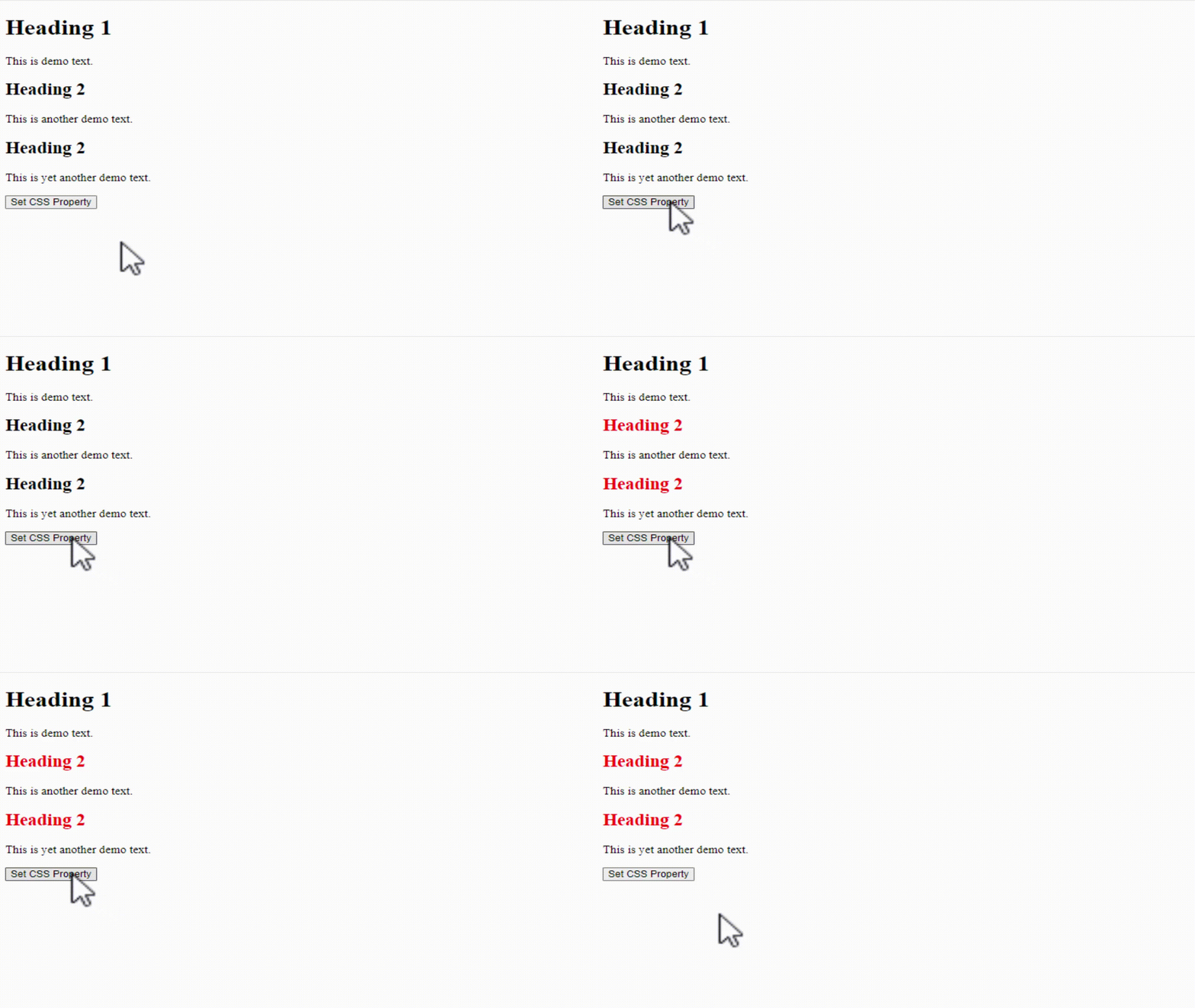
In the below example, we will set the color property for the <h2> element. The font color property will be set to red for the <h2> element:
<!DOCTYPE html>
<html>
<head>
<script src="https://ajax.googleapis.com/ajax/libs/jquery/3.6.1/jquery.min.js"></script>
<script>
$(document).ready(function(){
  $("button").click(function(){
     $("h2").css("color", "red");
  });
});
</script>
</head>
<body>
<h1>Heading 1</h1>
<p>This is demo text.</p>
<h2>Heading 2</h2>
<p>This is another demo text.</p>
<h2>Heading 2</h2>
<p>This is yet another demo text.</p>

<button>Set CSS Property</button>

</body>
</html>
Output
Set Multiple CSS Properties
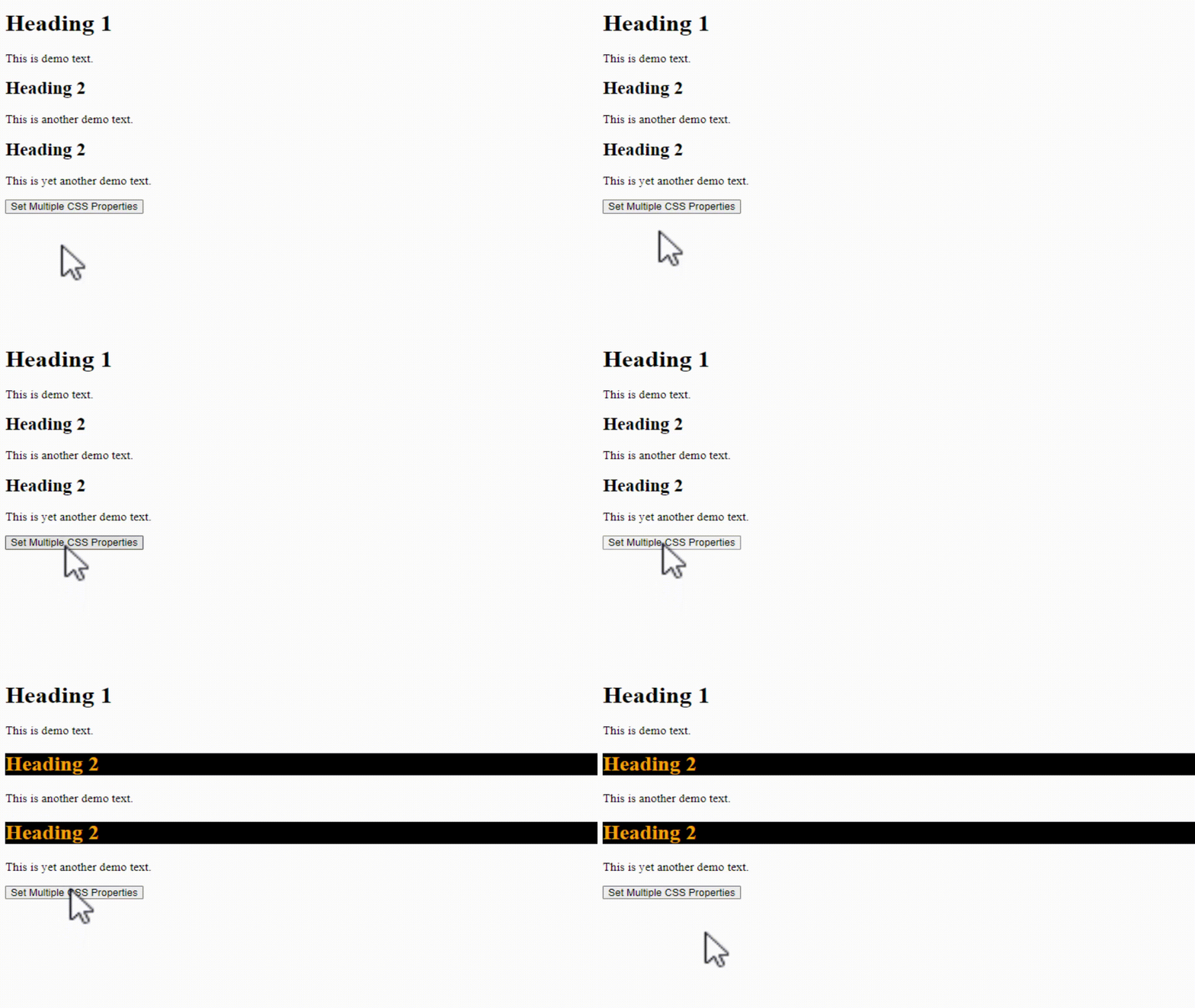
To set more than one CSS property, use the same css() method, and that too only once. In the below example, we will set 3 properties for the <h1> elements. Let us see the example:
<!DOCTYPE html>
<html>
<head>
<script src="https://ajax.googleapis.com/ajax/libs/jquery/3.6.1/jquery.min.js"></script>
<script>
$(document).ready(function(){
  $("button").click(function(){
     $("h2").css({"background": "black", "color":"orange", "font-size": "28px"})
  });
});
</script>
</head>
<body>
<h1>Heading 1</h1>
<p>This is demo text.</p>
<h2>Heading 2</h2>
<p>This is another demo text.</p>
<h2>Heading 2</h2>
<p>This is yet another demo text.</p>

<button>Set Multiple CSS Properties</button>

</body>
</html>
Output

No Comments